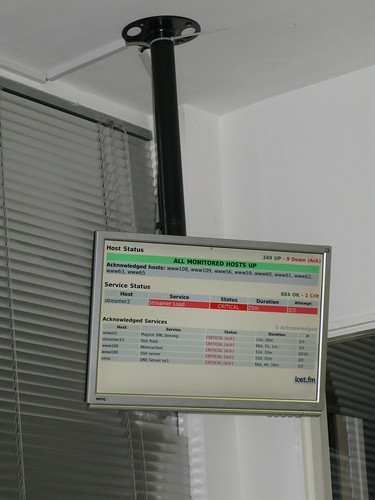
It’s been a long time coming (even longer than CactiView!) but finally I’ve cleaned up (as much as possible) and released Naglite2, a full screen easy to read status screen backed on to Nagios.
Perfect for a NOC or operations room, you get a at-a-glance view of your hosts and services status, which not only helps in sudden emergencies but also incentivise your staff to get a “clean board” and fix the remaining niggly problems in your network!
The screen also compresses down quite nicely into a mobile browser, perfect for checking on the status of your systems whilst on the move.
The code is up over at Github, feel free to use/distribute/fork and modify or send me comments.
I recently purchased a Draytek Vigor 2710n router to replace my aging 2600plus. I’ve always had a very high opinion of Draytek routers. They’re fairly expensive compared to most home routers, but they do have a bucketload of fairly advanced features, that I was disappointed were lacking in others.
I changed ISP at the same time as getting the new router, taking out service with the (so far) brilliant Zen Internet after recommendations from colleagues especially Caitlin who used to work there before joining us at Last.fm. They’re a proper Sysadmin’s ISP, giving you a netblock of 8 IPs on a pretty inexpensive home connection.
Unfortunately for me I (foolishly) didn’t check to see whether the 2710n still supported this, since my 2600 did and I just assumed a higher model number meant it was actually an upgrade rather than a downgrade.
After a quick chat to Draytek support they told me this indeed was not available and never would be. I contemplated giving up with the 2710n and returning it, or just using it as a WAP, but I was somewhat peeved when I looked in the HTML and noticed the only reason the button was missing (the interface has hardly changed in the 5 years between the models) was because it was hidden using CSS:
<input type="button" name="btnWIpAlias" id="wIpAlias" style="display: none;" value="WAN IP Alias" onclick="wanIpAlias()">
Using Firebug, you can easily show this button and it’s functions work fine. I decided to do some more digging.
The Draytek have an excellent Telnet (and now SSH) interface too, and the functions are entirely available there: admin> ip aux ?
%% ip aux add [IP] [Join to NAT Pool]
%% ip aux remove [Index]
%% Where IP = Auxiliary WAN IP Address.
%% Join to NAT Pool = 0 or 1.
%% Index = The Index number of table.
Now auxiliary WAN1 IP Address table:
Index no. Status IP address NAT IP pool
----------------------------------------------------
1 Enable X.X.X.110 Yes
2 Enable X.X.X.105 No
3 Enable X.X.X.106 No
4 Enable X.X.X.107 No
5 Enable X.X.X.108 No
6 Enable X.X.X.109 No
Sorted! The IPs then appear in the relevant places in the web interface too, for example in the “open ports” or “DMZ” sections. If IP routing is what you’re after (used to be called “For IP Routing Usage”) simply use the “ip 2ndaddr” command.
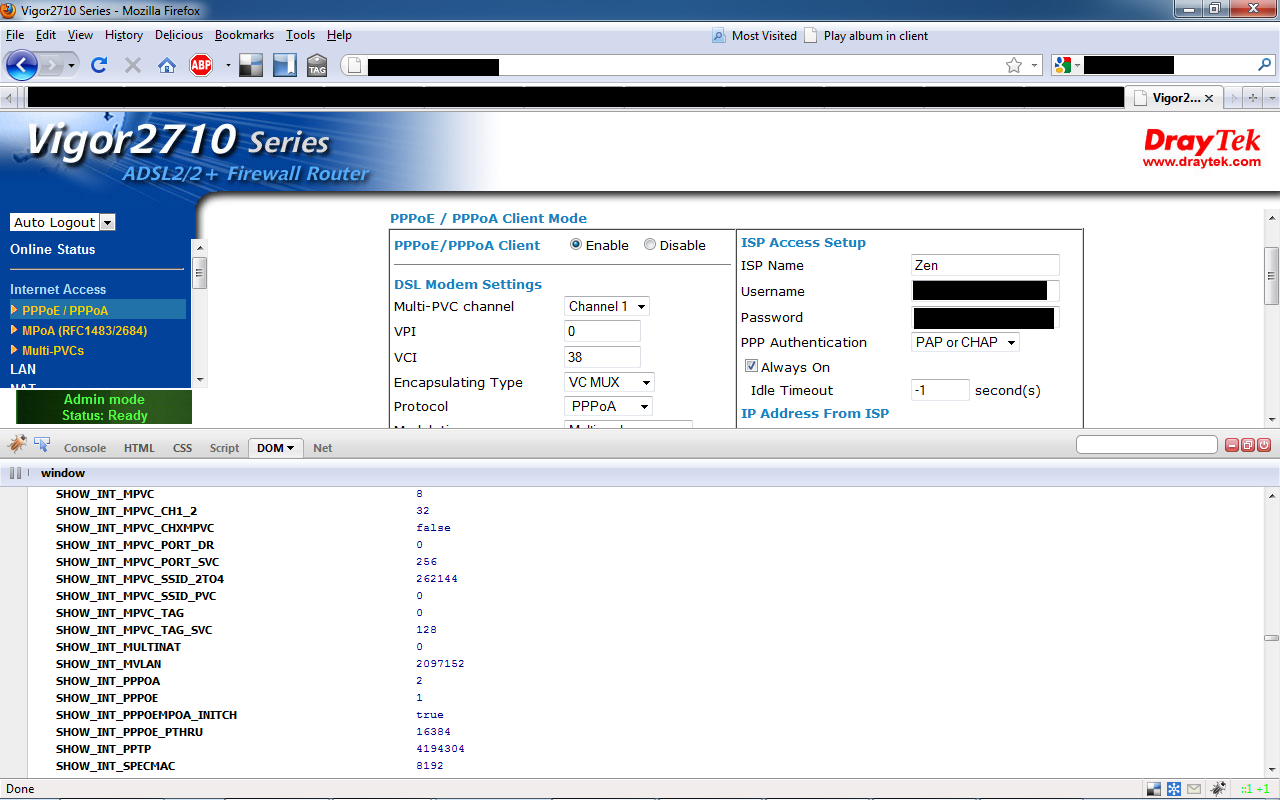
If you like configuration via the web interface, that’s pretty simple to enable too. Grab Firebug for Firefox, and use the “DOM” tab to display all the variables used on the current page.
Firebug DOM console
There are tonnes of variables in here, many are set to “0”. Incredibly, all these functions do is tell the web interface to display extra features. They’re all there and available in the background, from static routing to Multi-Nat, to IP routing and extra VPN settings. You can even enable the WAN, Wizard and VoIP options if you really want to.
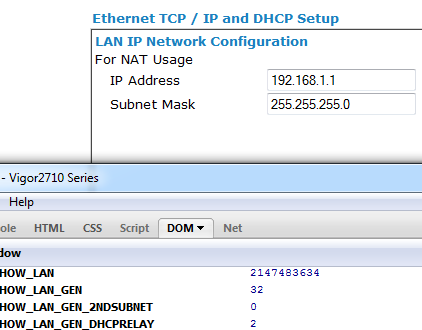
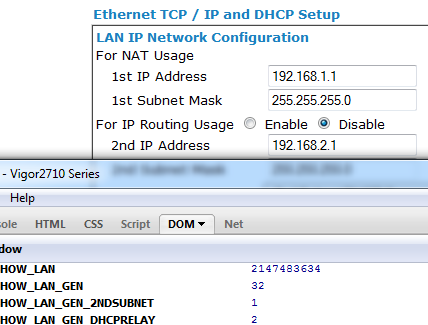
For Multi-NAT, double click on SHOW_INT_MULTINAT and set it to 1. For 2nd subnet IP routing, find SHOW_LAN_GEN_2NDSUBNET and set it to 1. Have a search through and enable the functions are need. By the way, this only lasts for as long as you’re logged in, so you’ll have to repeat it if you ever need to change the variables.
Before:
After:
I will note that you should probably buy the 2820 as suggested by Draytek if you really want these features.. It’s only £40 more expensive, but saves you a bit of hassle. This guide is only for people who have been mislead and don’t want to send their routers back!
 router to replace my aging 2600plus. I’ve always had a very high opinion of Draytek routers. They’re fairly expensive compared to most home routers, but they do have a bucketload of fairly advanced features, that I was disappointed were lacking in others.