If you have a Dell E4300, as wonderful as they are, you may have trouble sourcing a 64bit driver for Windows 7. It’s not listed on the drivers page on the Dell site (as of writing), nor is there even a 64bit Vista driver.
So, to google! (which is probably why you’re here after all) and there are a few suggestions of installing the 32bit driver and Dell Connection Manager. I was fully expecting to have some 3rd party software to at least connect to the network, but I wasn’t sure about the 32bit driver, so I continued on my Googling. And it bought me to a page hidden deep in the URL structure of the Dell support website. This link here! A 64bit 5530 HSPA Mobile Broadband driver for Windows 7.
It’s just listed a driver, so I thought it was a good starting point, so let’s install it. What happened next was pleasantly surprised. Firstly, it found a GPS port. Does this card also contain a GPS receiver? I haven’t managed to make it work yet, but that would be super cool… The best surprised was what happened when I clicked on the Windows 7 “Connect to” system tray icon.
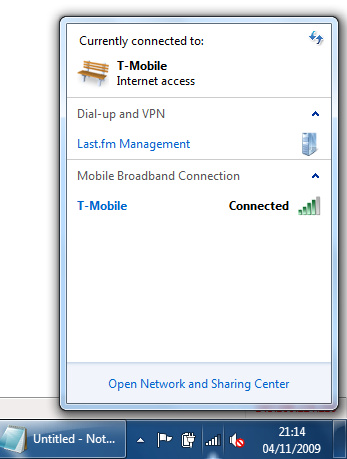
What’s this?! I didn’t even have to tell it I’m on T-mobile, it just popped up and showed me the signal, and let me connect. No config, worked first time. From installing the driver to connected to WWAN in under 30 seconds.
Perhaps I’m easily surprised, but I think this is one of my favourite features of Windows 7 so far; it’s so nice that it’s consistent, as well as the improved UI for the “connect to” menu in general. It makes the utility for managing mobile broadband I used in Vista look like a childs toy…
That was easy 🙂